First Steps
Follow these steps to create your first bot on the Bitmarck Chat and Voice Platform - BCVP. Design your first conversations, add a knowledge source, and test the initial interactions. You will get to know the most important functions of the BCVP and learn how to work with the platform and its documentation.
Step 1: Create a New Bot
In this guide, we will create a bot from scratch to learn step-by-step how to configure flows, nodes, and knowledge sources.
- Navigate to the Overview page.
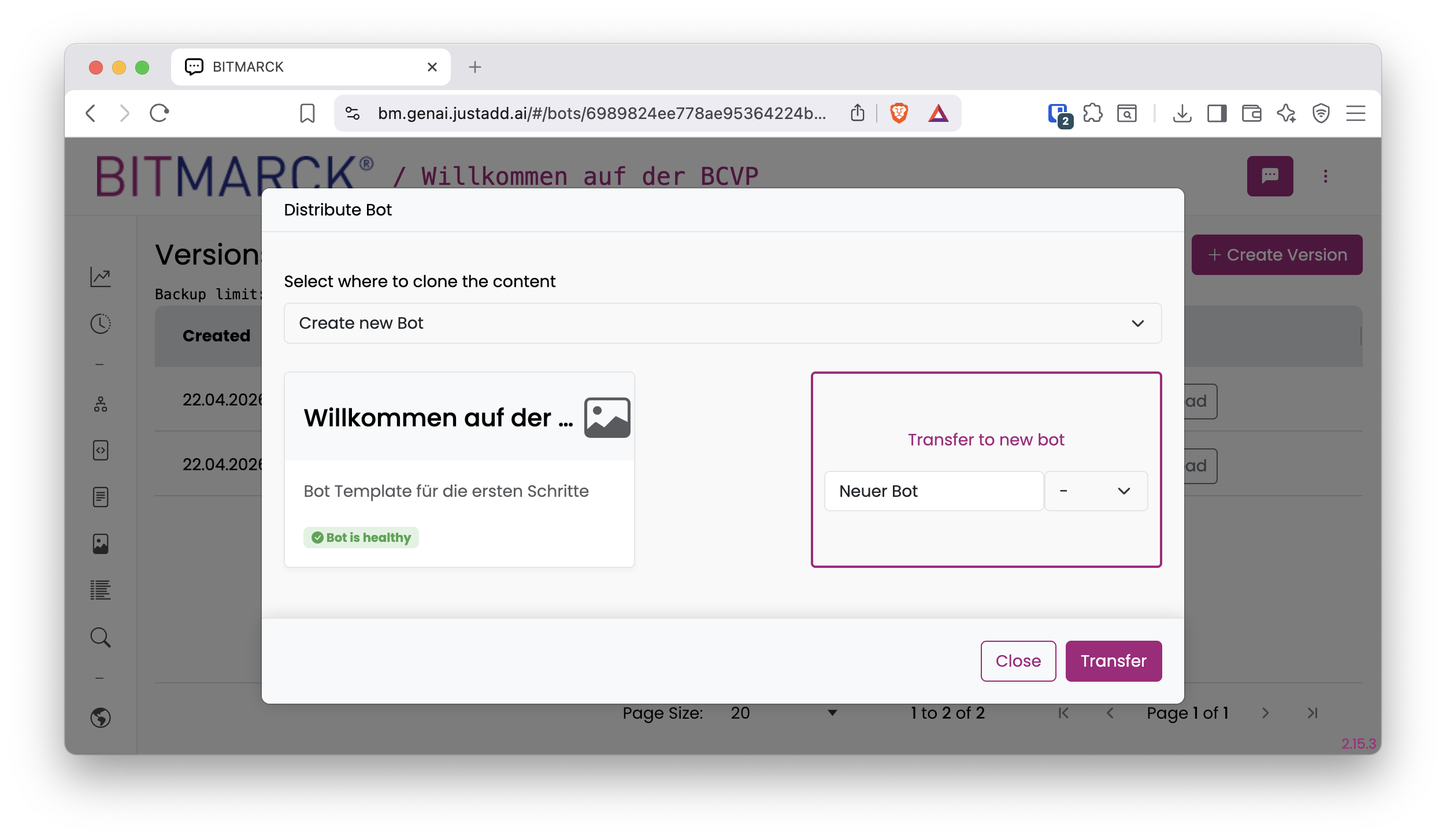
- Create a new bot (e.g., via the "Versions" menu -> "Distribute" and select "New Bot" without using a template, or use the corresponding "New" button).
- Give your new bot a name.
Step 2: Create Your First Flow
The behavior of bots is divided into Flows. Since you are starting with a fresh bot, you must first create a flow.
- Navigate Add a Response Node
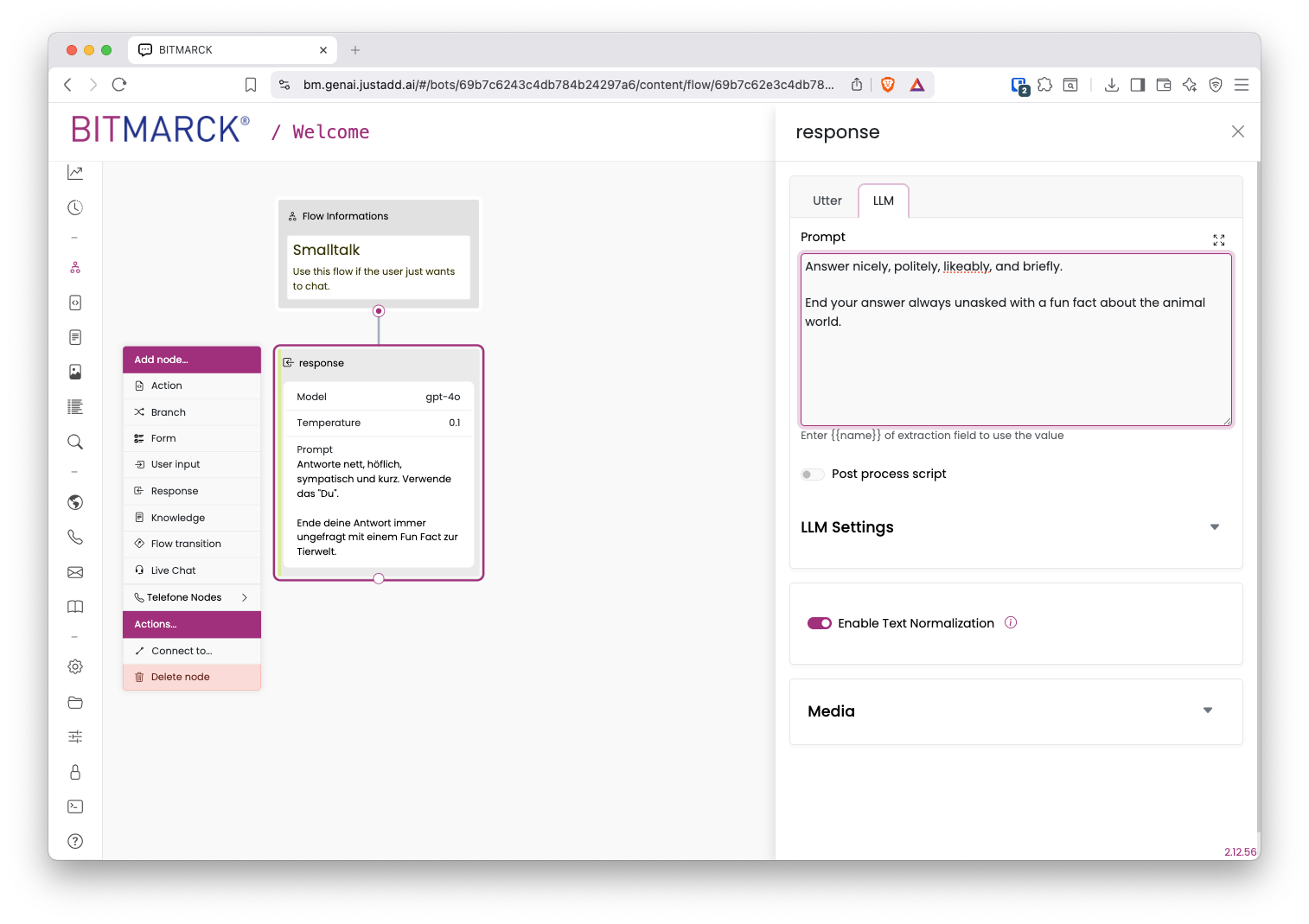
Flows are composed of nodes. To give your flow functionality, add a node.
- In your flow, click "Add Node" and select the Response Node. -swered. This way, the bot can be structured and the response behavior can be configured situationally.
Step 3: Open the Response Node
Flows are composed of nodes. The most important node is the Response Node. Here a Large Language Model (LLM) can be used to generate the response. The response behavior of your bot is directly controlled via prompts in the interface. This way you can use the power of modern AI (LLMs) without complicated setups.
Connecting Nodes
You can connect to nodes by clicking the Connect-button. Use double-click on a connection to remove it.
⚙️ Expert Tip
If you want to dive deeper: You can set LLM parameters such as temperature yourself and fine-tune the generation.
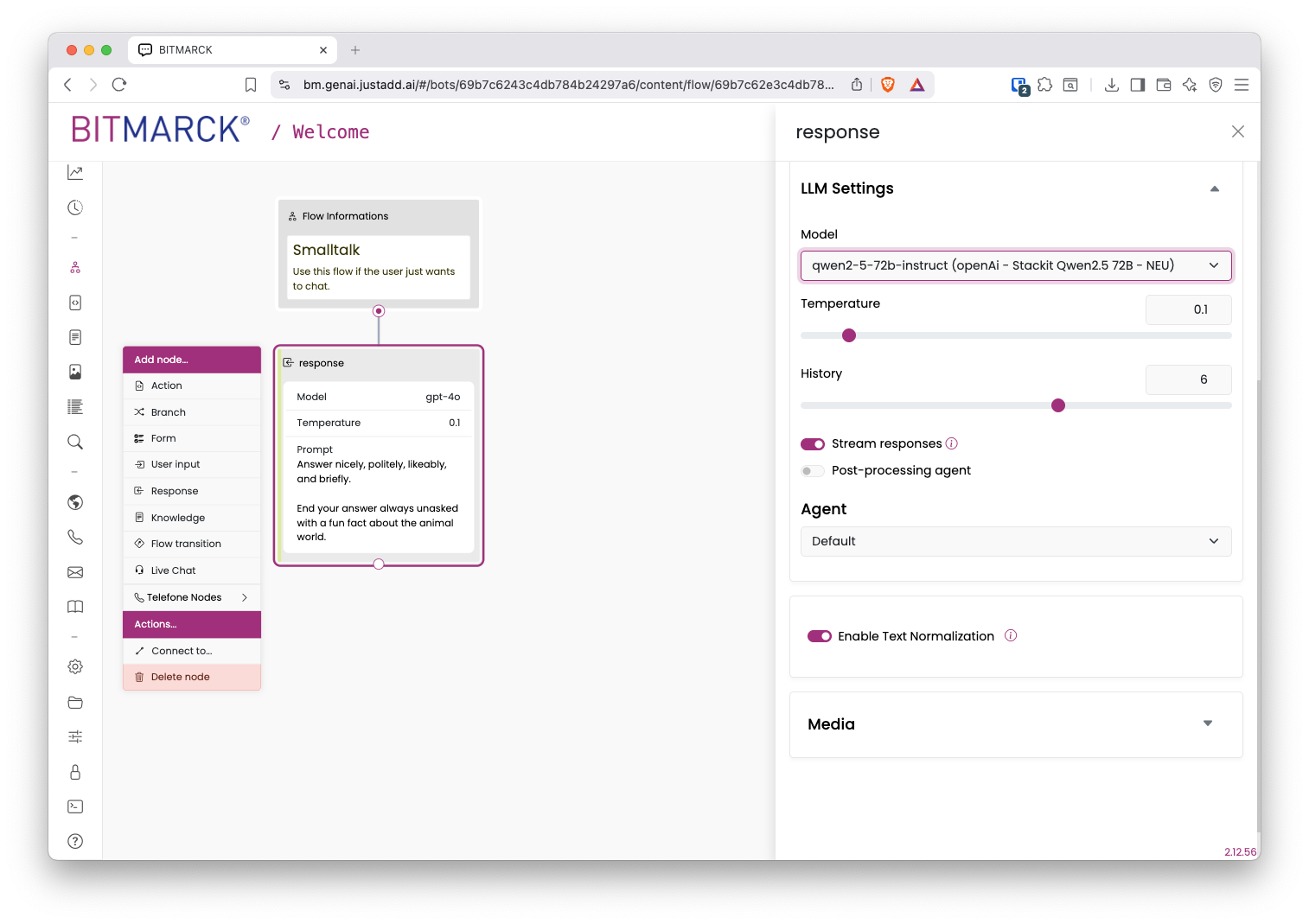
👉 Open the LLM Settings and try making a small adjustment. Take a look at the documentation to see what each parameter does.
Background Knowledge – Artificial Intelligence and Large Language Models:
- LLMs (Large Language Models) are advanced AI systems that can understand, generate, and process natural language. The basis is the training of artificial neural networks on huge amounts of text from the internet, books, and other text corpora to learn patterns, relationships, and the structure of language. Next-token prediction is the core mechanism of how LLMs work. During training, the model learns to calculate the probability of which word (or token) should come next in a text, based on the current context.
- The input that a user enters into a language model is called a prompt. The prompt is the question or text that serves as the starting point for the model to generate a response. A well-formulated prompt is crucial, as the quality and accuracy of the response depend heavily on the precision and clarity of the prompt.
Step 4: Open the Developer Chat
In the development chat at the top right, you can test your bot directly. You can also see how the request is processed internally — perfect for understanding and debugging.
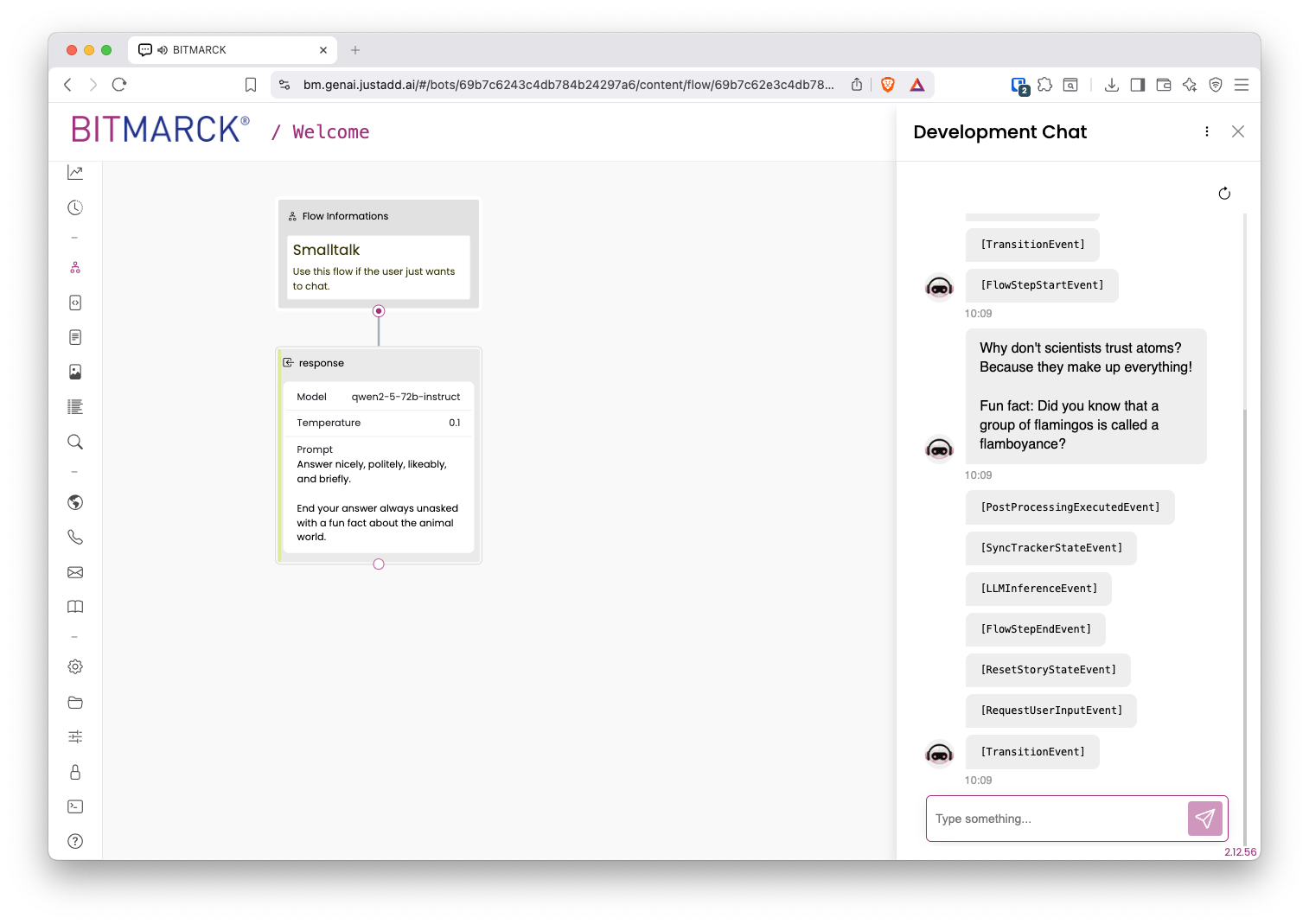
👉 Ask your bot a test question and observe the processing.
Step 5: Knowledge Base
You can add your own knowledge to your bot by uploading documents. These are automatically processed and split into small chunks. Based on this, your bot can retrieve information and provide precise answers. Additionally, websites can be automatically crawled at regular intervals to always provide current information from the configured websites.
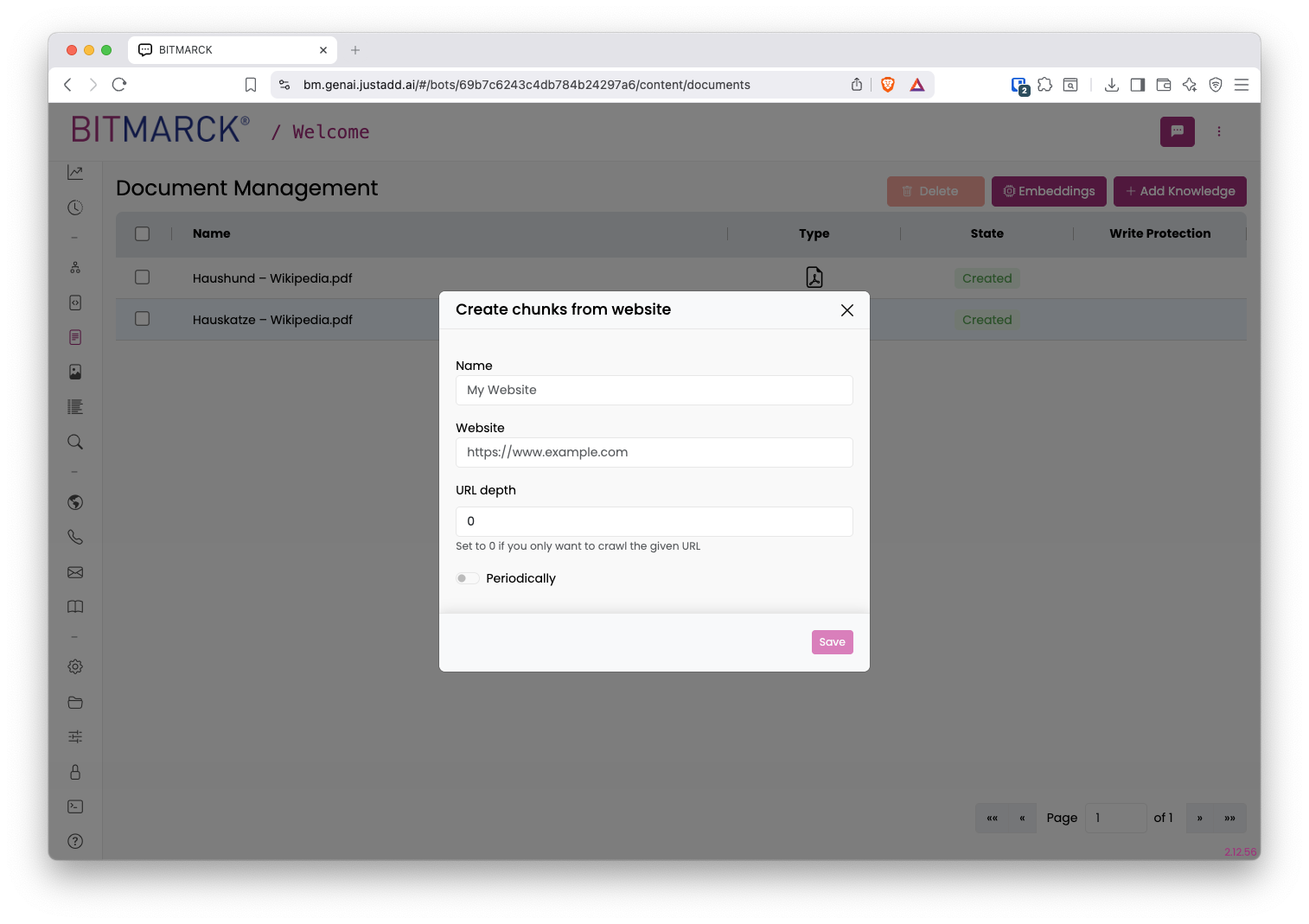 Create a new flow (e.g., "Knowledge Questions") and add a knowledge node. You can now
👉 Upload your first document and check how it's processed.
Create a new flow (e.g., "Knowledge Questions") and add a knowledge node. You can now
👉 Upload your first document and check how it's processed.
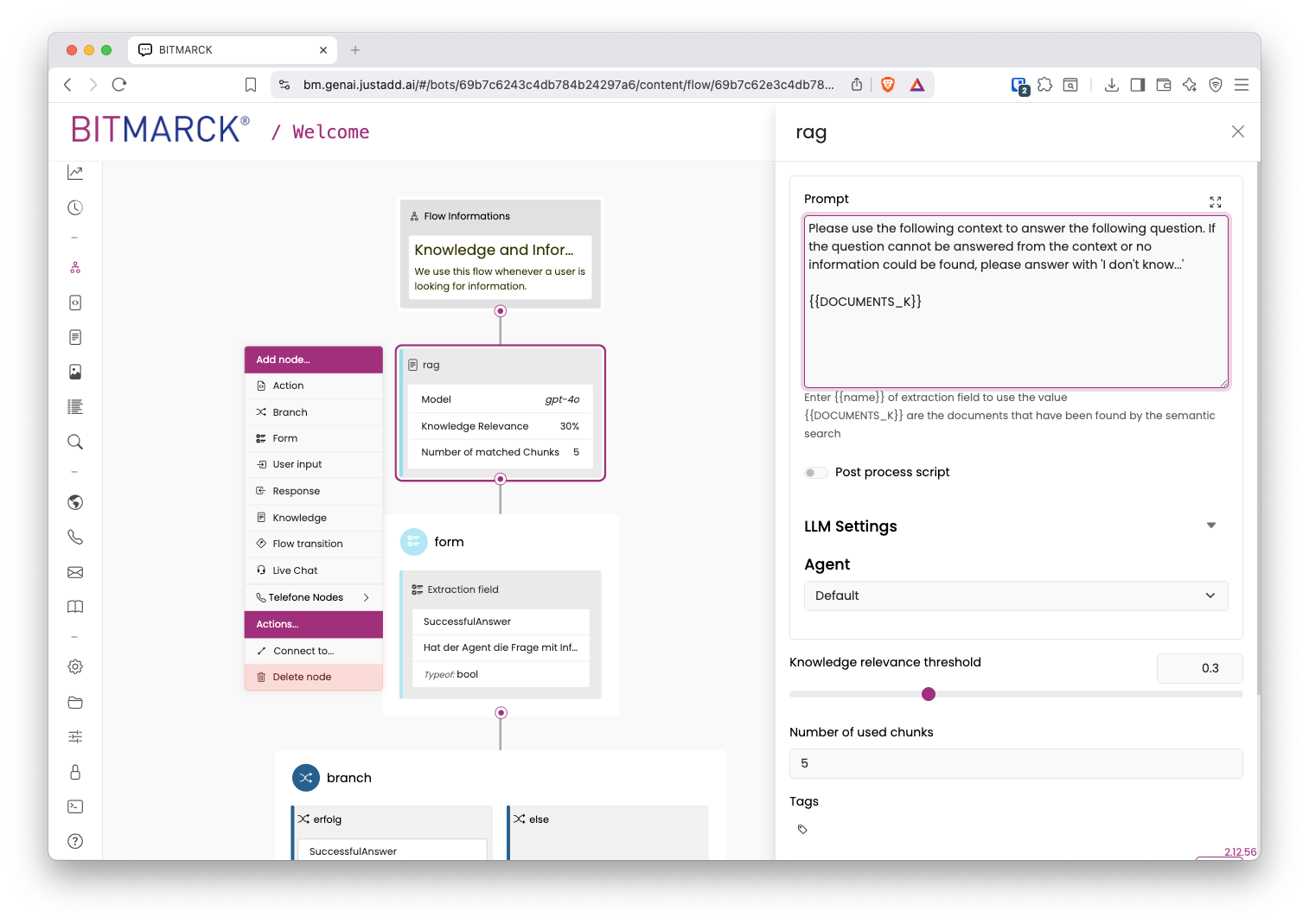
Your bot accesses your knowledge base through special Knowledge Nodes. This allows you to determine when and in which context your bot uses knowledge and controls the search in the knowledge base. In the Vector Search menu, you can experiment with how the search works and what influence the parameters have.
👉 Open the "Knowledge Question" flow and edit the knowledge node. You can adjust the prompt or modify the settings of the retrieval step.
💡 Expert Tip: Tags for Targeted Search
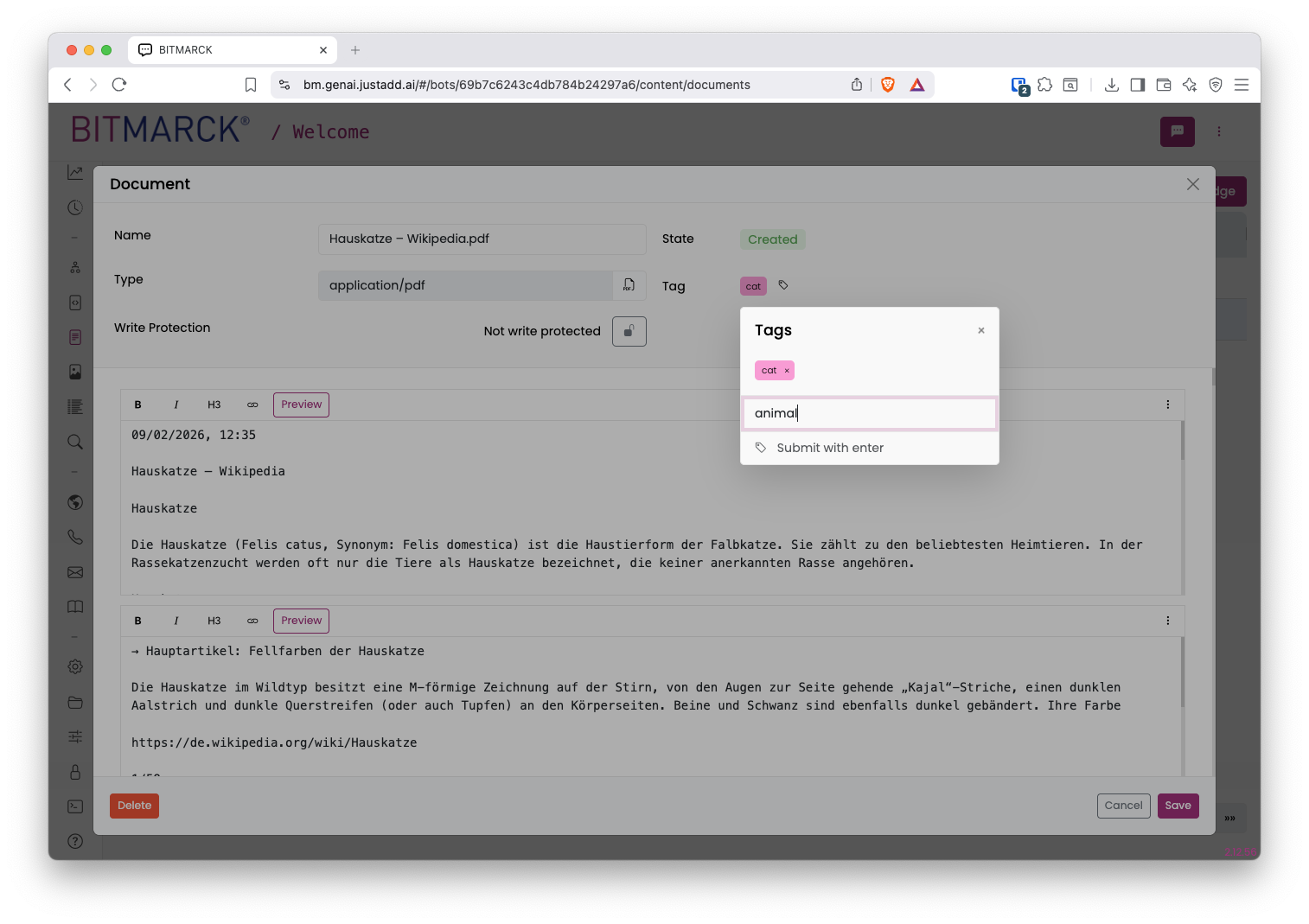
Structure your knowledge database with tags. This way you can search for only relevant content situationally — faster and more precise. In the knowledge node, you can configure which tags should be considered. More precise data quantity => better results
👉 Assign tags to a document and test the difference in the development chat.
💡 Expert Tip: Maximize Data Quality
For the best results:
- Structure content in advance using tags, precisely curate your data set.
- Use plaintext formats like Markdown
- Validate the automatic chunking, if necessary use manually defined chunks
👉 Upload a short Markdown document and compare the responses.
Background Knowledge – Retrieval Augmented Generation:
- Retrieval Augmented Generation (RAG) is a hybrid AI technique that combines retrieval systems with generative language models. It was developed to improve the performance and accuracy of LLMs by accessing specific, current, or domain-specific knowledge.
- How RAG works:
- Retrieval Phase: When a user request comes in, the system searches the knowledge database using your chunks with relevant information.
- Augmentation Phase: The relevant information found is added as additional context to the original prompt.
- Generation Phase: The LLM generates a response based on the enhanced prompt
- RAG uses Vector Search: Classical search algorithms search texts by looking for matching character strings. With RAG, we instead use a semantic search based on AI models, so-called Embedders. This allows us to find semantically similar texts, even when synonyms, spelling errors, or other languages are used. You can try the vector search in the Vector Search tab.
- If the amount of knowledge is very small, you can also simply copy the content directly into the prompt and eliminate a possible source of error - the search. Try out how the variants with and without search differ.
Background Knowledge – ETL Pipeline:
- How do we make sure that the data in our bot is always up-to-date? The answer might be an ETL-pipeline!
- ETL (Extract, Transform, Load) Pipelines are crucial for the automated management of knowledge bases. They consist of three main phases:
- Extract: Data from various sources (documents, databases, APIs, PDFs, etc.) are collected
- Transform: High-quality texts are extracted, e.g. PDF parsing, OCR, etc. Longer texts are split into small chunks (Chunking)
- Load: Upload of data into the knowledge database via the API interface, also comparison of the original data volumes, removing obsolete data from the knowledge database
- Examples of ETL Pipelines: Upload of content from Confluence pages or documents in SharePoint folders.
Step 6: Information Extraction
We can also use LLMs to convert information from the conversation history into structured data.
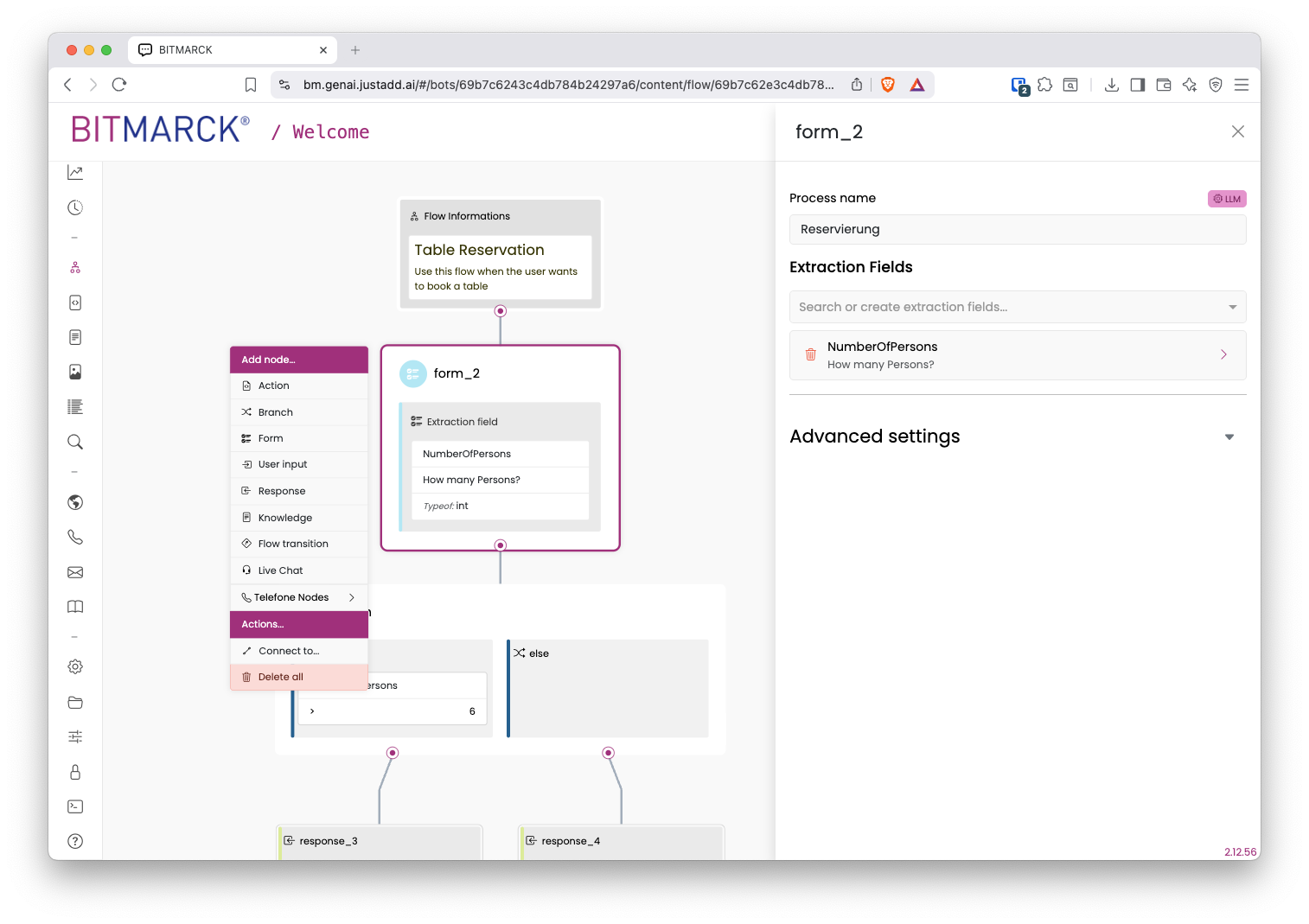
Form Nodes help your bot to specifically capture information from a conversation. These can be, for example, name, email or other data.
👉 Create your first form field now and test how the bot recognizes the data.
💡 Expert Tip: Branch Nodes for Conversation Flow
You can control the flow based on the form fields. Example: If a user indicates they are a minor, other information sources are searched.
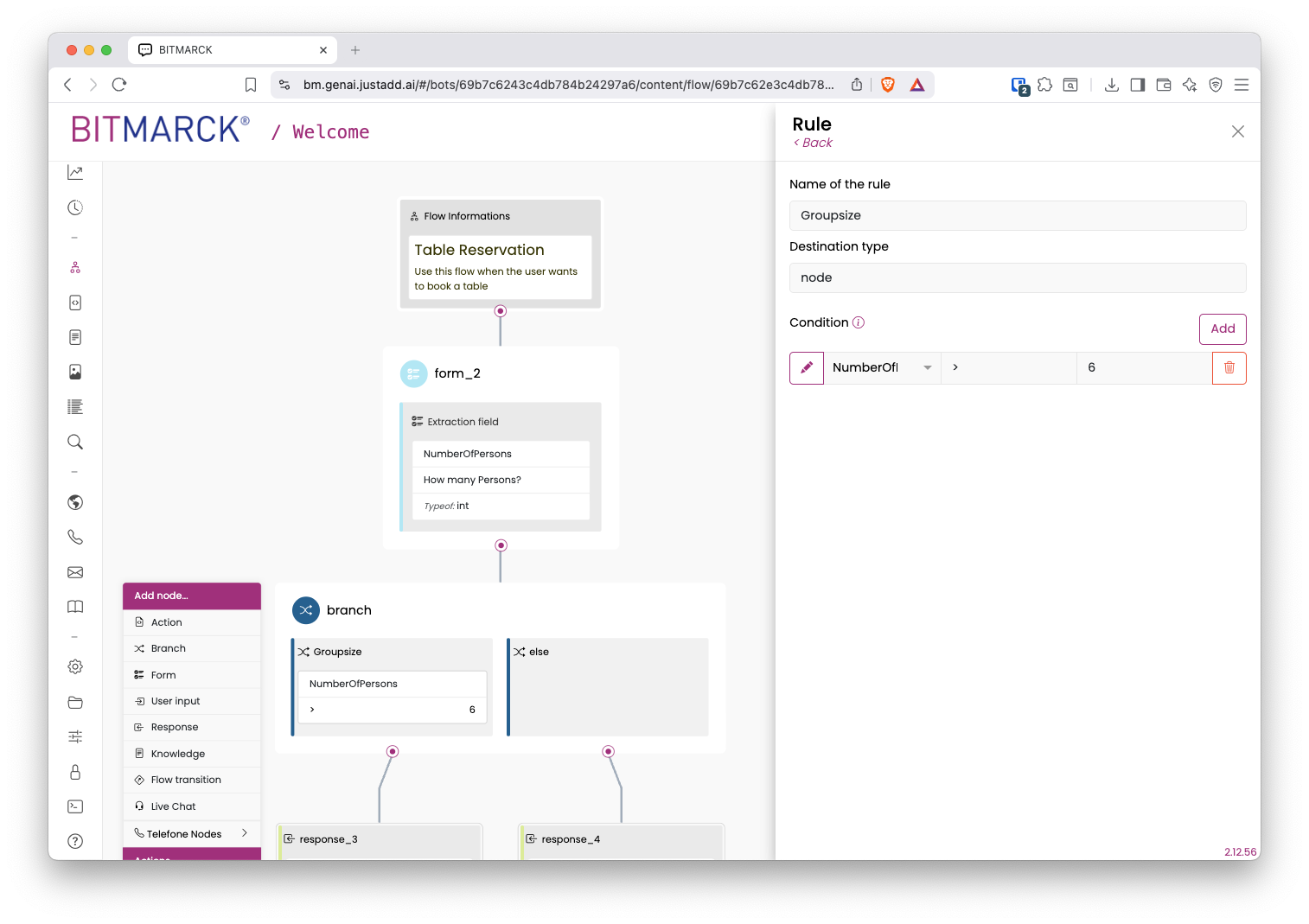
💡 Expert Tip: Creative Use of Form Fields
Form fields can also be "repurposed", for example to check:
- Was an answer found in a RAG node?
- Did the bot have to answer "I don't know"?
This way you can control flows more precisely and build smarter bots.
Channels
Under the menu items in the Channels area, you can configure how your bot can be interacted with:
- Website: In the Website area, you can activate and configure a widget that can be integrated into websites. You can style the widget and adapt it to the website.
- Phone: You can use the Phone Channel so that your bot can talk to users by phone. The channel converts spoken language to text and from bot responses back to spoken language. You can control calls (hang up, forward, record), operate menus via keypad, make outgoing calls, and block specific callers. This creates natural voice communication between bot and callers.
- IMAP Mail: Communicate with your bot via Email mailbox.
- Knowledge Manager: The Knowledge Manager channel offers a specialized frontend application developed for internal knowledge workers, support teams, and specialized users. The interface allows chatting with your bot in a familiar chat interface. You can reach the Knowledge Manager at https://knowledge.BCVP-Instance.de.
Python Node
The Action Node allows you to execute Python code within flows. An empty function is automatically created that receives an object that allows us to use its methods to:
- Generate outputs,
- Fill slot variables (see form extraction),
- Access the chat history, or
- Call LLMs.
This way, diverse use cases can be implemented, for example, you can call external APIs with data extracted from chat histories using form nodes. Or you extract information about the state of a chat to control the flows more specifically with branch nodes.
Generate Output
We can use the fixed_utter() method to make the bot output a string.
Example:
# Using RemoteLLMTrackerApi to utter a fixed string
tracker_api.fixed_utter("Hello! How can I help you today?")
Logging
To display log messages in the debug chat, we can use the methods debug(), info(), warning(), error():
Example:
# Logging
tracker_api.info("We've landed in the 'Smalltalk' flow.")
Manipulate Slots
We can store structured information within chats in Slots and read and write the entries.
Example:
# Read a single slot
name = await tracker_api.a_get_slot_value("user_name", "Unknown")
# We log the value for debugging.
tracker_api.info(name)

# Set a single slot
tracker_api.set_slot("user_intent", "booking")
tracker_api.set_slot("extracted_name", "Max Mustermann")
Read Chat History
Example:
# Complete chat history
conversation_history = await tracker_api.a_get_history()

for turn in conversation_history:
    tracker_api.info(f"{turn.role}: {turn.content}")

# Last 5 conversation turns
recent_history = tracker_api.get_history(n_turns=5)
Call LLM
We can send our own prompts to the LLM and process the response.
Example:
# Simple LLM call
llm_response = await tracker_api.a_call_llm([
    {"role": "system", "content": "You are a data extraction assistant. Extract only relevant information."},
    {"role": "user", "content": tracker_api.get_latest_user_message().content}
])
Stream LLM Responses
LLMs generate responses token by token. We can stream the response to the user accordingly, so we don't have to wait for the complete response.
Example:
# Streaming
stream = await tracker_api.stream_call_llm(
    messages=[
        {"role": "system", "content": "You are a funny bard in a medieval court"},
        {"role": "user", "content": "Wackelpudding?"}
    ]
)

await tracker_api.stream_utter(stream)
There are also functions for LLMs that also have access to Tools and can generate Tool-Calls, or for LLMs that generate structured data.
💡 Expert Tip: Python Everywhere
In addition to the action nodes, Python can be used in many other places to modify the behavior of the bots. For example, Orchestrator, RAG Agent, the normal output node, or pre- or post-processing agents. In the Scripts section of the platform you can find all scripts that were created in your bot.